Fleet launching
Step by step: send a fleet on a mission from a planet, then change its missions in flight.
Launch a fleet from a planet
To send a fleet on a mission, start by selecting one of your planets on the map.
1. Select your planet
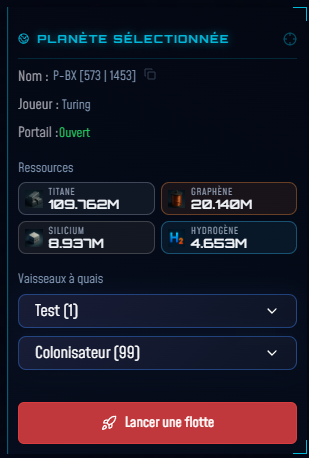
Click on one of your planets (on the map or the left panel). The right panel displays its details: name, resources, ships at dock.
2. Click "Launch a fleet"
At the bottom of the planet panel, click the "Launch a fleet" button. This button only appears if the planet has at least one ship at dock.
3. Configure ships
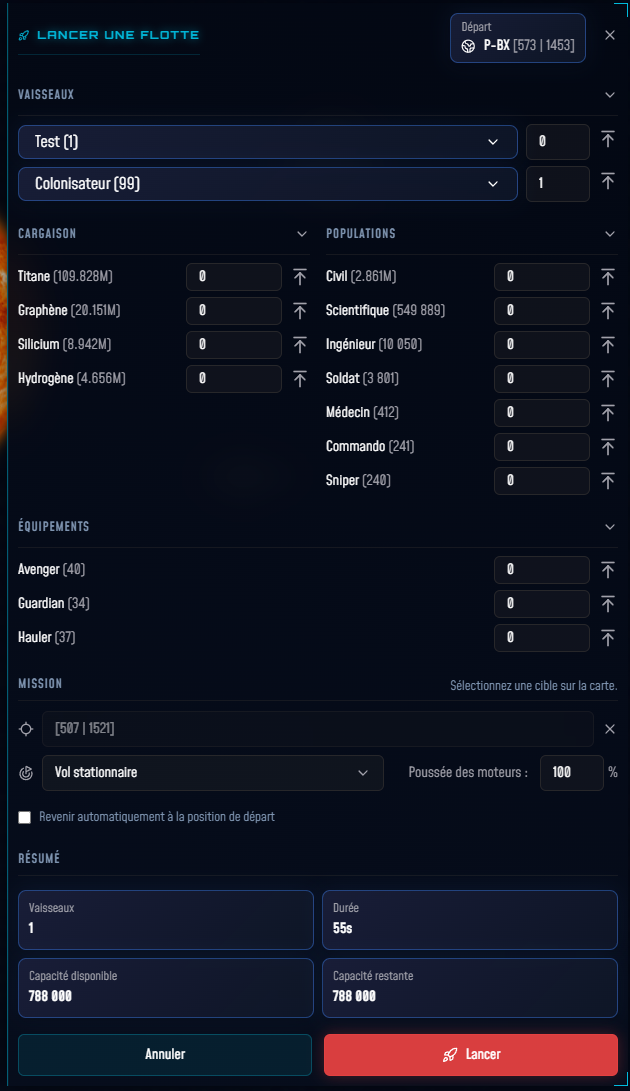
Select how many ships of each type to include in the fleet.
4. Choose the mission and target
Click directly on the map to designate the target (planet, asteroid, ruins, station…), then select the mission type from the dropdown. Available missions depend on the selected target type. If only one mission is available, it is selected automatically.
5. Set thrust and cargo
Adjust engine thrust (1% to 100%) to control speed. If the mission requires it, add resources, populations or equipment as cargo. Check "Return to start automatically" to have the fleet return on its own.
6. Launch
Review the summary (ship count, travel duration, available cargo capacity) then click "Launch". The fleet immediately appears moving on the map.
Add or update missions of a fleet in flight
A fleet in flight has a mission queue. You can add new missions or edit queued missions at any time.
1. Select the fleet
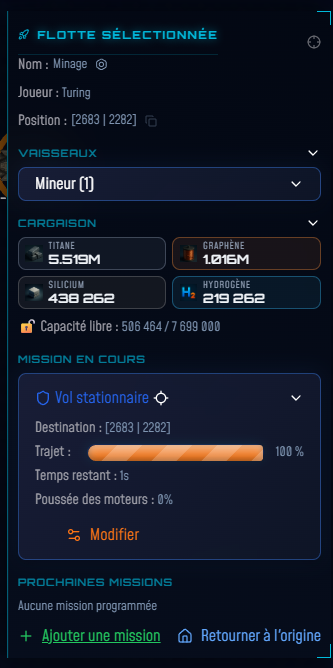
Click on your fleet on the map, or on its name in the left panel ("My fleets" section). The right panel shows the current mission and the list of upcoming queued missions.
2. Add or edit a mission
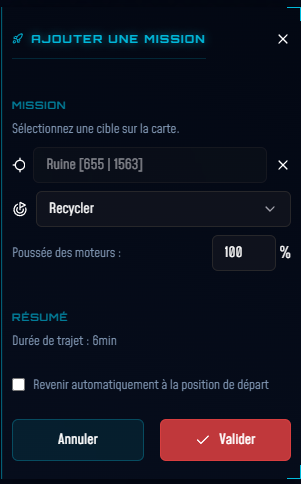
Click "Modify" next to a queued mission to change it, or "Add a mission" to append a new one at the end of the queue.
3. Select the target
Click directly on the map to designate the mission target. Its position appears in the Target field of the panel. You can clear the selection with the ✕ button next to the field.
4. Configure the mission
Choose the mission type from the dropdown, set the engine thrust, and configure any specific parameters (resources to transport, etc.) if needed.
5. Validate
Check the estimated travel duration in the summary, then click "Validate". The mission queue is updated immediately.
The current mission cannot be edited directly. You can reorder queued missions using the up/down arrows displayed in the fleet panel.