Galaxy map
The map is the main screen: it shows the galaxy, your planets and your fleets, and is where you launch missions.
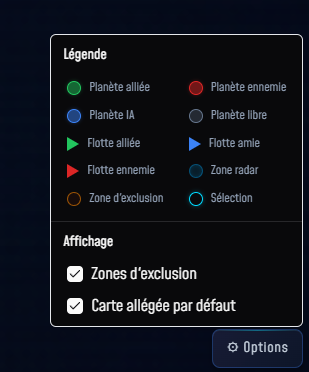
Map legend
Map elements are color-coded by faction. Click on any object to see its details in the right panel.
Planets
Fleets
Zones
3D map and light map
The game offers two map display modes, switchable from the map Options.
3D Map
Immersive view with three-dimensional rendering of planets, stars and fleets. Enabled by default on desktop.
Light map
Simplified 2D view, lighter and faster. Enabled by default on mobile.
Open the Options panel (button at the bottom right of the map) and toggle the "Light map by default" option on or off.
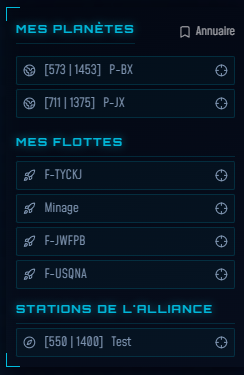
Navigation panel
The left panel lists your planets, fleets in flight and alliance stations. On mobile, open it via the "Planets & fleets" tab at the bottom of the screen.
My planets
Click a planet to select it and display its details in the right panel. The crosshair ⊕ button centers the camera on it without changing the selection.
My fleets
Lists fleets currently in flight. Click to see the current mission and the mission queue. The crosshair ⊕ button centers the view on the fleet.
Alliance stations
Shown only if your alliance owns stations. Click to select, crosshair to center.
On each row: left-click to select the object (the right panel opens), crosshair ⊕ button to center the camera without losing the current selection.